Last Updated: September 17, 2026
Byline: Public Evidence Editorial Team
Reviewed for accuracy: This guide was checked against current Microsoft, Apple, FTC, and CISA security guidance.
If you think your computer has a virus or malware, the most reliable way to check is to run an updated security scan rather than relying on symptoms alone. On Windows, use Windows Security → Virus & threat protection and start with a Quick scan; if you still have concerns, use a Full scan or Microsoft Defender Offline. On a Mac, use macOS’s built-in malware protections, check suspicious applications, and investigate any security warnings instead of overriding them.


5
What are the signs that your computer might have malware?
Common warning signs include:
- Your computer suddenly becomes unusually slow.
- Programs crash or the system freezes repeatedly.
- Unexpected pop-ups appear.
- Your browser redirects you to unfamiliar websites.
- Your homepage or search engine changes without permission.
- New applications, icons, extensions, or toolbars appear that you didn’t install.
- Security software becomes disabled or cannot update.
- Files become inaccessible, renamed, encrypted, or receive unfamiliar extensions.
- Your computer uses unusually high CPU, memory, storage, or network resources.
- You notice suspicious activity involving accounts or personal information.
The FTC lists slow performance, unexpected errors or crashes, pop-ups, browser redirects, changed homepages, and unauthorized icons or toolbars among possible malware symptoms. Microsoft similarly lists unusual slowness, crashes, browser problems, and security-tool interference.
But there’s an important limitation: none of these symptoms proves that malware is present. Low storage, failing hardware, excessive startup programs, software bugs, overheating, or normal background activity can produce similar behavior. Microsoft specifically cautions that strange computer behavior can have causes unrelated to malware.
Can a slow computer mean it has a virus?
Yes, but slow performance alone is weak evidence.
Malware can consume processor, memory, disk, or network resources. However, the same symptoms can come from low disk space, aging hardware, software problems, updates, or too many applications running at once. A security scan is therefore more useful than guessing from performance alone.
What’s the fastest way to check a Windows PC for malware?
For most Windows 10 and Windows 11 users, start with Microsoft Defender Antivirus, which is integrated into Windows Security.
Step 1: Open Windows Security
Open the Start menu and search for Windows Security.
Then select:
Virus & threat protection
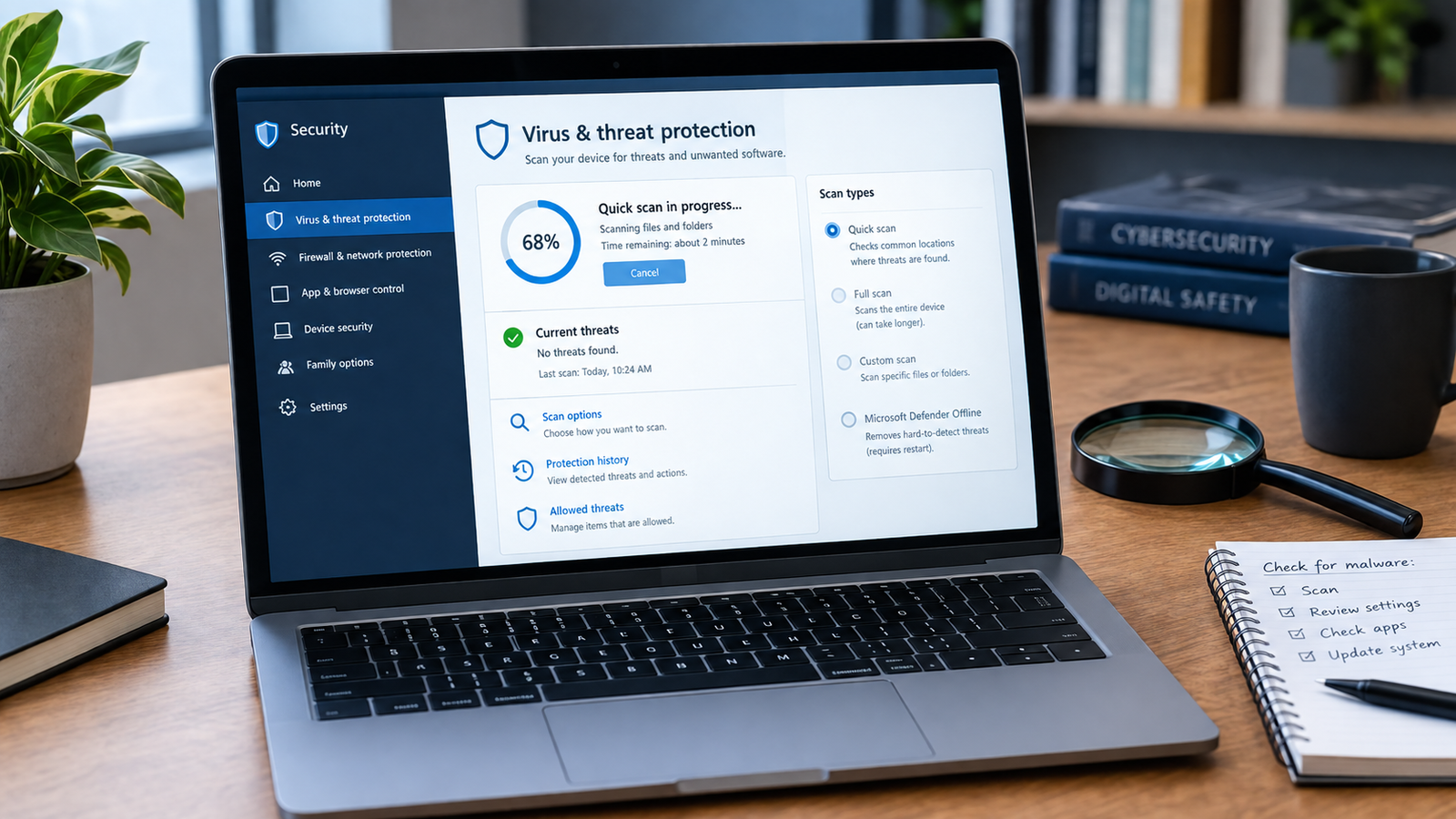
Microsoft says this section shows current threats, previous scan information, protection status, and available scanning options.
Step 2: Run a Quick scan
Select Quick scan.
A Quick scan checks locations where malware is commonly found. It’s appropriate when you want to quickly investigate suspicious behavior or perform a basic health check.
Step 3: Check the result
If Windows Security reports a threat, follow its recommended action. You can also review Protection history to see threats detected and actions taken by Windows Security.
If the scan is clean but your computer still behaves suspiciously, don’t automatically assume the computer is safe or infected. Move to a deeper scan and investigate other possible causes.


5
When should you run a Full scan or Offline scan?
A Quick scan isn’t the only option.
Microsoft provides several scan types:
| Scan | Best use |
|---|---|
| Quick scan | Initial check for common threats |
| Full scan | When you suspect malware and want a broader examination |
| Custom scan | When you want to check a particular file, folder, or location |
| Microsoft Defender Offline | When persistent or difficult malware may be hiding while Windows is running |
Microsoft recommends a Full scan if you believe your PC may be infected. A Full scan examines the computer more extensively and can take longer.
For malware that repeatedly returns or interferes with normal security tools, Microsoft recommends Microsoft Defender Offline. It restarts the PC and scans outside the normal Windows environment, which can help detect malware that is difficult to remove while Windows is running.
Before starting an Offline scan, save your work because the computer will restart.
What if a suspicious file is the problem?
You don’t always need to scan the entire computer.
Microsoft lets you right-click an individual file or folder in File Explorer and select Scan with Microsoft Defender. On Windows 11, you may first need to select Show more options.
This is useful if, for example, you downloaded an unexpected executable, archive, installer, or document and want to investigate that particular item.
How can you check a Mac for malware?
Macs have built-in malware defenses, so checking a Mac is different from following a Windows Defender procedure.
Apple says macOS uses several layers of protection, including Gatekeeper, notarization, and XProtect. XProtect provides built-in detection and removal capabilities for known malware, with security data updated independently from ordinary system updates.
Start by looking for:
- An application you don’t recognize.
- A recent download that triggered a malware warning.
- Unexpected browser behavior.
- Repeated security alerts.
- An application macOS says it cannot verify.
- Software that appeared after downloading something from an untrusted source.
Apple advises users to be cautious with applications downloaded outside trusted sources. macOS can warn when it cannot verify an application or detects known malicious content.


6
Should you trust a pop-up saying “Your computer has a virus”?
Not automatically.
A browser pop-up claiming that your computer is infected does not prove that it is. Scammers can use alarming warnings to persuade people to call a fake support number, install software, pay for unnecessary services, or give someone remote access.
The FTC specifically warns against buying security software in response to unexpected calls or messages claiming that malware was found on your computer.
If the warning appears only inside a web browser, don’t assume the website has actually scanned your entire computer.
Instead:
- Close the suspicious webpage or browser window.
- Don’t call a phone number displayed in the warning.
- Don’t install software because the popup tells you to.
- Open your computer’s legitimate security application yourself.
- Run a security scan from Windows Security or use the security controls provided by macOS.
This distinction matters because a real antivirus detection and a fake browser warning are two different things.
What should you check manually if the scan is clean?
A clean scan doesn’t necessarily explain every strange behavior.
Look at recently installed software and browser extensions. Remove programs you don’t recognize, especially if they appeared around the same time the problem began.
On Windows, you can also check Windows Security → Virus & threat protection → Manage providers to confirm which antivirus provider is active. If another antivirus program is installed, Microsoft Defender Antivirus can automatically switch to a disabled state while the other provider is active.
You should also check:
- Browser extensions you don’t remember installing.
- Recently installed applications.
- Startup applications you don’t recognize.
- Unexpected changes to browser settings.
- Available storage space.
- Operating-system and browser updates.
- Repeated security warnings.
Don’t delete system files simply because their names look unfamiliar. A suspicious-looking filename is not proof of malware.
What if the antivirus scan finds malware?
If your security software detects malware, follow its quarantine or removal instructions.
Then:
- Let the security software quarantine or remove the detected item.
- Restart the computer if requested.
- Update the operating system and security software.
- Run another scan.
- If the threat returns, run a deeper or Offline scan.
- Investigate how the suspicious software entered the computer.
Microsoft notes that recurring malware can sometimes be associated with an undetected component that reinstalls the detected threat after restarting. In those cases, Defender Offline can help identify persistent infections.
If malware has caused major system changes or the computer remains compromised, Microsoft says recovery options can include restoring from a trusted backup or resetting/reinstalling Windows.


5
What should you do if you think malware may have stolen your passwords?
Treat this as a broader security problem, not merely a computer-performance problem.
If you strongly suspect malware has been running on your computer, avoid entering additional sensitive information on that device until you’ve investigated it.
For important accounts, use a separate trusted device to change passwords. Prioritize email, banking, payment, cloud-storage, and other accounts that could be used to reset additional passwords.
Also:
- Turn on multifactor authentication where available.
- Review recent account activity.
- Check for unfamiliar recovery email addresses or phone numbers.
- Contact your financial institution if you see unauthorized transactions.
- Don’t reuse a password that may have been exposed.
The FTC advises people who suspect malware to stop activities involving passwords or personal information, use another computer to change passwords, update security software, and run a scan.
CISA also emphasizes that malware can allow attackers to access, manipulate, steal, or deny access to data stored on a device.
Can malware exist without obvious symptoms?
Yes.
The absence of obvious symptoms isn’t proof that a computer is clean. Some malicious software is designed to operate quietly rather than display obvious pop-ups or crashes.
That’s why the stronger verification method is to combine behavioral clues with security scanning, rather than using either one alone.
A practical sequence is:
Suspicious behavior → security scan → deeper scan if necessary → investigate affected accounts → recover or reinstall if the infection persists.
CISA describes malware as software that can compromise the integrity of a device and potentially give an attacker access to information or system activity.
How can you reduce the chance of getting malware again?
Keep the operating system, browser, applications, and security software updated.
Microsoft recommends keeping Windows, browsers, and applications current and using built-in security features such as Microsoft Defender SmartScreen.
The FTC similarly recommends automatic security and operating-system updates, downloading software from sources you trust, and avoiding unexpected links and attachments.
For Macs, Apple recommends obtaining applications from trusted sources and warns that overriding macOS security protections for unidentified applications can expose the computer to malware.
A sensible baseline is:
- Keep automatic security updates enabled.
- Use the operating system’s built-in malware protection.
- Download software from reputable sources.
- Don’t install cracked or pirated software.
- Treat unexpected attachments and links cautiously.
- Review browser extensions periodically.
- Maintain backups of important files.
- Don’t give strangers remote access because of an unexpected security warning.
Windows vs. Mac: which checking method should you use?
| Situation | Windows PC | Mac |
|---|---|---|
| Basic malware check | Windows Security Quick scan | Review macOS security alerts and suspicious software |
| Deeper investigation | Defender Full scan | Investigate suspicious apps and system behavior |
| Persistent malware | Defender Offline | Apple security tools plus professional malware investigation if needed |
| Suspicious downloaded file | Scan with Microsoft Defender | Don’t open it; follow macOS security guidance |
| Unexpected security popup | Verify through Windows Security | Verify through macOS security controls |
| Prevention | Updates + Defender + SmartScreen | Updates + Gatekeeper + XProtect |
The key difference is not that one operating system can get malware and the other cannot. Both have security protections, but their built-in detection and application-control mechanisms work differently. Microsoft documents Windows Security’s scanning tools, while Apple documents Gatekeeper, notarization, and XProtect as components of macOS’s malware defenses.
What is the simplest malware-check routine for most people?
If you don’t know where to start, use this checklist.
Windows
- Open Windows Security.
- Go to Virus & threat protection.
- Check that protection is active and updated.
- Run a Quick scan.
- If you’re still concerned, run a Full scan.
- If malware persists or returns, use Microsoft Defender Offline.
- Update Windows and your applications.
- Investigate suspicious software and account activity.
Mac
- Don’t open suspicious downloaded files.
- Review unfamiliar applications.
- Pay attention to macOS malware or developer-verification warnings.
- Keep macOS and applications updated.
- Don’t bypass security warnings simply to install an unknown application.
- If suspicious behavior continues, investigate the device with appropriate security software or professional support.
The goal isn’t to prove that every strange computer problem is malware. The goal is to test the malware hypothesis using reliable security tools before taking more drastic action.
Frequently Asked Questions
How do I know if my computer has a virus?
Look for unexplained changes such as persistent pop-ups, browser redirects, unfamiliar software, unusual crashes, disabled security tools, or unexpected resource use. These signs are clues, not proof. Run an updated malware scan to investigate.
How do I scan my computer for viruses?
On Windows 10 or 11, open Windows Security → Virus & threat protection → Quick scan. If you suspect an infection despite a clean Quick scan, Microsoft recommends considering a Full scan and, for persistent malware, Microsoft Defender Offline.
Does a slow computer mean it has malware?
Not necessarily. Malware can consume system resources, but low storage, hardware problems, software bugs, updates, and too many running applications can cause similar slowdowns.
Can a computer have malware without obvious symptoms?
Yes. Malware doesn’t always cause visible problems. Security scanning is therefore more reliable than judging the computer solely by how it behaves.
Is a “Your computer has a virus” browser popup real?
It might be a scam. Don’t call the number, install software, or give remote access because of an unexpected browser warning. Instead, close the warning and independently open your computer’s legitimate security software. The FTC specifically warns about unexpected security messages designed to trick people into buying or installing fraudulent software.
What should I do if malware keeps coming back?
Update your security software, run a deeper scan, and consider Microsoft Defender Offline on Windows. Persistent infections can involve malware that reinstalls itself or survives normal scanning. If the system remains compromised, recovery from a trusted backup or reinstalling the operating system may be necessary.
Sources and primary references
- Microsoft — Virus and Threat Protection in Windows Security
- Microsoft — Windows Security overview
- Microsoft — Troubleshoot malware detection and removal
- Apple — Protecting against malware in macOS
- Apple — Safely open apps on Mac
- FTC — Protect Your Computer from Malware
- CISA — Protecting Data Stored on Your Devices
Learn how to check your computer for viruses and malware using Windows and Mac security tools, plus signs, scans, and removal steps.
