




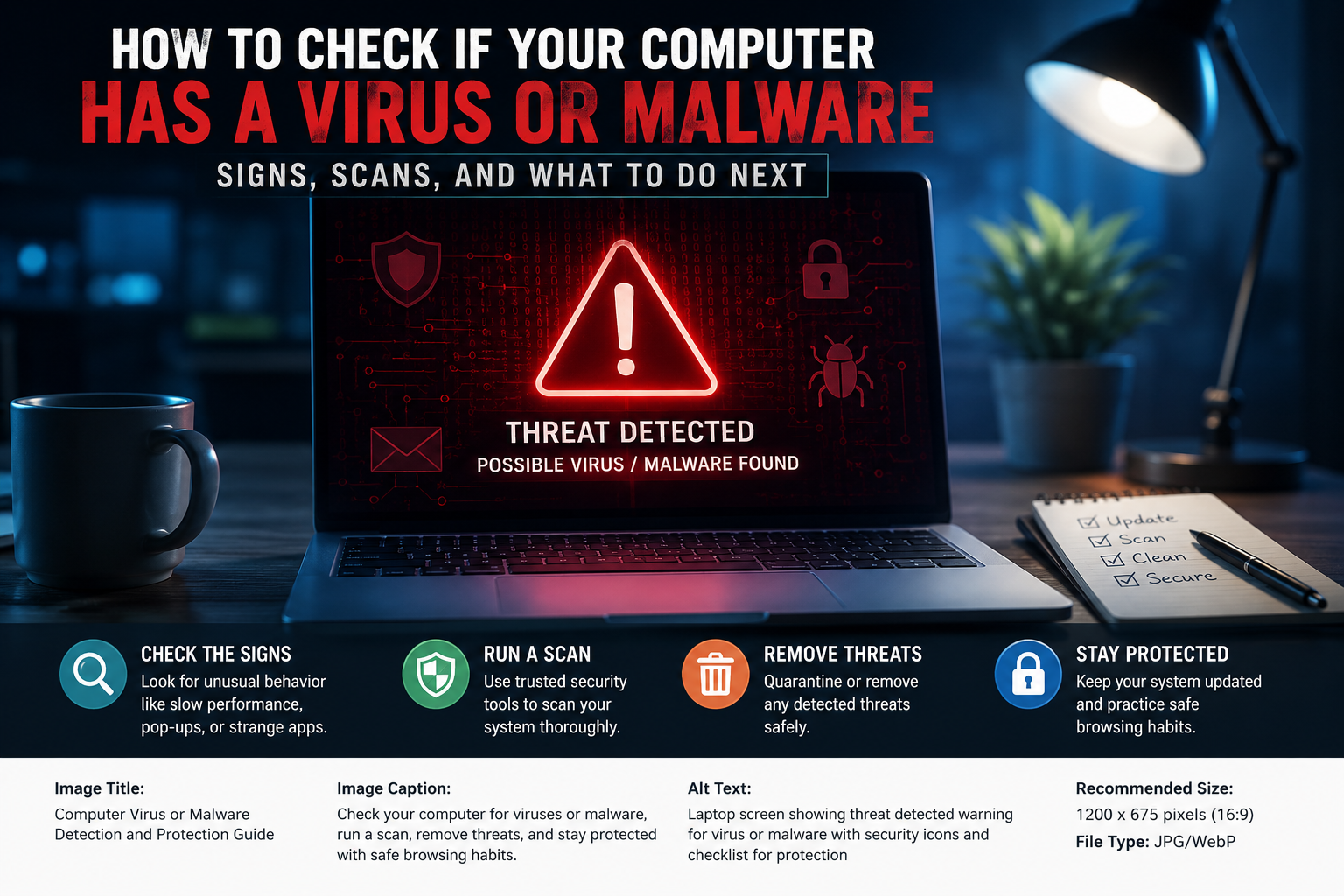
Your computer suddenly becomes slow. Strange pop-ups start appearing. Your browser opens websites you never asked for. Maybe a program you don’t recognize appears after startup.
The obvious question is: Does my computer have a virus?
Sometimes the answer is yes. But here’s the part many people miss: a slow computer, crashing apps, or a noisy fan does not automatically mean malware. Hardware problems, too many startup programs, browser extensions, low storage, outdated drivers, and ordinary software bugs can create very similar symptoms.
The safest approach is to look for several warning signs, check what is actually running on the computer, and then use a trusted security scanner.
This guide explains how to do that on Windows and Mac, how to recognize fake virus warnings, what to do if a scan finds something, and what to check when your antivirus says everything is fine but your computer still behaves strangely.
First: Is a Virus the Same Thing as Malware?
Not exactly.
Malware is the broad term for malicious software. It includes viruses, ransomware, spyware, trojans, worms, and other unwanted programs designed to harm a device, steal information, spy on users, or gain unauthorized access.
A virus is one particular type of malware that can replicate by attaching itself to files or programs.
So when someone says, “I think my computer has a virus,” the real question is usually:
“Could malicious software be running on my computer?”
That’s the question your security scan needs to answer.
Microsoft also distinguishes malware from potentially unwanted applications (PUAs). A PUA may display unwanted advertising or behave in ways you don’t want, without necessarily meeting the definition of malware.
10 Signs Your Computer Could Have Malware
One symptom by itself isn’t proof of an infection. Look for multiple unusual changes, especially when they appear suddenly.
1. Your computer suddenly becomes much slower
A gradual slowdown over several years is normal.
A PC that was working normally yesterday and suddenly becomes extremely sluggish is more interesting.
Malware can consume CPU, memory, storage, or network resources in the background.
But don’t jump to conclusions. A nearly full drive, failing hardware, too many startup applications, or a browser with dozens of tabs can produce similar behavior.
Better test: Check whether an unfamiliar process is consuming unusually large amounts of CPU, memory, disk, or network activity.
2. Your browser keeps taking you somewhere you didn’t choose
This is one of the more useful warning signs.
You search for something, but the browser sends you to a different search engine.
You click a normal result and get redirected to an unrelated website.
Your homepage changes without your permission.
New toolbars or extensions appear.
These changes can indicate unwanted software or a compromised browser environment. The FTC lists unexpected redirects, changed homepages, and unfamiliar browser add-ons among signs that malware may be present.
However, a browser extension or unwanted application can sometimes cause the same behavior without being a traditional virus.
That’s why you should investigate the cause rather than simply deleting random files.
3. Pop-ups appear when you aren’t browsing
Unexpected advertisements are another warning sign, particularly when they appear outside the websites you normally visit.
Be especially suspicious if you see messages such as:
“Your computer is infected!”
“Call Microsoft immediately.”
“Your Windows license has expired.”
“Click here to remove 12 viruses.”
Important: Don’t call the number.
A browser pop-up cannot reliably diagnose your entire computer.
The FTC specifically warns about fake security warnings designed to frighten people into calling scammers or purchasing unnecessary services. Legitimate technology companies do not unexpectedly display security warnings telling you to call a phone number.
Close the page instead of following its instructions.
Then run your own security check using trusted software.
4. Programs you don’t remember installing appear
Open your installed applications and look carefully.
Do you see:
- A program you don’t recognize?
- A recently installed application?
- A browser extension you didn’t add?
- Security software you never installed?
- A remote-access application you don’t remember using?
An unfamiliar program isn’t automatically malicious. Some applications install helper programs, update services, drivers, or bundled components.
The useful question is:
“Where did this come from, and why is it here?”
Check its publisher, installation date, location, and whether you intentionally installed it.
5. Your security tools suddenly stop working
This deserves attention.
If Windows Security, Task Manager, your browser, or other system tools suddenly become unavailable or behave strangely, investigate further.
The FTC lists disabled operating-system tools among possible malware symptoms.
Don’t immediately assume malware, though. Administrative restrictions, damaged system files, updates, or third-party software can also cause problems.
6. Your accounts start doing things you didn’t do
This is potentially more serious than a slow computer.
You may notice:
- Emails sent that you didn’t write
- Social-media posts you didn’t create
- Password-reset emails you didn’t request
- New login notifications
- Online purchases you don’t recognize
- Security settings changed without your permission
At that point, don’t focus only on cleaning the computer.
You also need to consider account compromise.
Malware such as information stealers can potentially target credentials and other sensitive information. Microsoft notes that malware can be used to steal personal data and financial information.
7. Your files suddenly become inaccessible
If files suddenly have strange extensions, won’t open, or you see a message demanding payment to recover them, treat the situation as potentially serious.
This can be associated with ransomware.
Don’t immediately start deleting files or formatting the computer.
If you suspect an active ransomware incident, disconnect the affected computer from the network and seek appropriate incident-response or professional assistance, particularly if the computer contains important business or personal information.
Your backup situation matters enormously here.
8. The computer connects to the internet when you’re not doing anything
Unexpected network activity can have many innocent explanations.
Windows and macOS regularly communicate with:
- Update servers
- Cloud-storage services
- Browsers
- Antivirus services
- Installed applications
- Synchronization services
So network activity alone does not prove malware.
But if an unfamiliar program is simultaneously consuming large amounts of network bandwidth, it’s worth investigating.
9. Your computer behaves differently immediately after installing something
Think back to what happened immediately before the problem started.
Did you install:
- A cracked application?
- A pirated game?
- A suspicious browser extension?
- An unofficial software update?
- A “free” driver?
- A file from an unknown website?
- An attachment from an unexpected email?
- A fake CAPTCHA or verification prompt?
That timeline can be extremely useful.
In 2026, the FTC has warned about fake CAPTCHA pages that instruct users to run Windows commands. The supposed verification is actually used to trick people into executing malicious content.
A useful investigation rule:
Don’t just ask “What is wrong with my computer?”
Ask:
“What changed immediately before the problem began?”
That question can narrow the investigation considerably.
10. Your computer has several symptoms at once
One symptom is weak evidence.
Several unrelated changes appearing together are much more concerning.
For example:
Sudden slowdown + browser redirects + unknown startup application + unexpected pop-ups
is much more suspicious than:
A five-year-old laptop becoming slower.
Think in terms of a pattern, not a single symptom.
How to Check for Malware on Windows
If you’re using Windows 10 or Windows 11, you already have a useful security tool built into the operating system: Windows Security with Microsoft Defender Antivirus.
You don’t need to download a random “PC cleaner” because a website told you that your computer is infected.
Step 1: Open Windows Security
Open the Start menu and search for:
Windows Security
Then open it.
Go to:
Virus & threat protection
Step 2: Start with a Quick Scan
Select:
Quick scan
A quick scan checks common locations where threats are likely to be found.
Microsoft describes this as a useful initial check when you’re concerned about the health of your PC.
If the scan finds a threat, follow Windows Security’s recommendation rather than manually deleting random files.
Step 3: Run a Full Scan if You’re Suspicious
If your symptoms continue or you have a stronger reason to suspect malware, choose:
Scan options → Full scan
A full scan checks considerably more of the system and can take much longer, especially on computers containing large numbers of files.
For the best chance of a useful result:
- Update Windows first.
- Make sure security intelligence is current.
- Close unnecessary applications.
- Let the scan finish.
- Don’t repeatedly cancel it because the computer feels slow.
Microsoft recommends keeping Defender’s protection components updated and using current protection intelligence when scanning.
Step 4: Use Microsoft Defender Offline When Malware Keeps Returning
This is one of the most useful checks that ordinary users often overlook.
If the same threat keeps coming back after removal, Windows provides Microsoft Defender Offline.
Instead of performing the scan inside the normal Windows environment, the computer restarts and performs the scan outside the usual Windows session.
That matters because some persistent malware can hide or interfere while Windows is running.
Microsoft specifically recommends Defender Offline when malware repeatedly returns or cannot be removed normally.
Go to:
Windows Security → Virus & threat protection → Scan options → Microsoft Defender Offline scan
Save your work first because the computer will restart.
Step 5: Check Threat History
Don’t stop at the message saying “No current threats.”
Open:
Windows Security → Virus & threat protection → Protection history
Look for previous detections.
This can answer an important question:
Did Windows already detect and quarantine something?
Microsoft explains that quarantined files are isolated so they cannot continue running on the computer.
Be careful before restoring anything from quarantine. If you don’t know why a file was detected, don’t simply click Allow because you want an application to work.
A Simple Windows Investigation Most People Skip
If the computer still behaves strangely after a clean scan, look at startup applications.
Open:
Task Manager → Startup apps
Look for programs that:
- You don’t recognize
- You didn’t intentionally install
- Appeared around the time the problem started
- Have an unknown publisher
Disabling a suspicious startup item doesn’t prove that it’s malware, but it can help you identify what is changing your system after every restart.
If you’re unsure about an item, research its exact name and publisher before removing it.
How to Check a Mac for Malware
Macs are not immune to malware.
Modern macOS includes multiple security mechanisms, including Gatekeeper, notarization, and XProtect, which help prevent known malicious software from running and help remediate detected malware.
If you suspect an infection:
1. Update macOS
Install available security and system updates.
2. Review recently installed applications
Think about what you installed immediately before the suspicious behavior appeared.
3. Check Login Items
Go to:
Apple menu → System Settings → General → Login Items & Extensions
Look for applications you don’t recognize.
Apple provides these settings specifically for controlling applications that automatically open or perform background activity when you log in.
4. Pay attention to Gatekeeper warnings
If macOS warns you that downloaded software cannot be opened because it may be unsafe, don’t automatically bypass the warning just to install the application.
Apple’s Gatekeeper checks downloaded applications for identified developers, notarization, and signs of modification.
What If the Scan Says “No Threats Found” but Your Computer Still Feels Wrong?
This is where many troubleshooting guides stop too early.
A clean scan doesn’t necessarily mean nothing unusual is happening.
It means the security tool did not detect a threat with the scan and protection mechanisms available to it.
If problems continue, investigate other possibilities.
Check these before assuming malware:
Too many startup programs
A large number of applications launching at startup can make a PC feel infected when it’s simply overloaded.
Low storage
A nearly full system drive can cause serious performance problems.
Browser extensions
One bad extension can create redirects, advertisements, or strange search behavior.
Outdated software
Old operating systems, browsers, drivers, and applications can create bugs and security weaknesses.
Hardware problems
Failing storage, overheating, defective memory, or other hardware issues can produce crashes and slowdowns.
Background synchronization
Cloud storage, photo libraries, Windows Update, game launchers, and other applications can temporarily consume substantial CPU, memory, disk, or network resources.
This is why “slow = virus” is a bad diagnosis.
The 3-Layer Malware Check
For a more reliable answer, use three types of evidence.
Layer 1: Behavior
What changed?
- Pop-ups?
- Redirects?
- Unknown programs?
- Account activity?
- Strange startup behavior?
Layer 2: System evidence
What does the computer show?
- Running processes
- Startup applications
- Installed programs
- Browser extensions
- Security history
- Network activity
Layer 3: Security detection
What does your security software report?
- Detected malware
- Quarantined files
- Suspicious applications
- Repeated detections
- Offline-scan results
When all three point in the same direction, your suspicion becomes much stronger.
This is a better approach than diagnosing malware from one dramatic symptom.
Don’t Download a “Virus Scanner” From the Warning Itself
This deserves its own section because it catches people every day.
You visit a website.
A frightening screen appears:
“WARNING! 7 VIRUSES DETECTED!”
Then it gives you a button:
SCAN NOW
Don’t trust it.
The webpage does not automatically have the authority to inspect your entire computer just because it displays a warning.
The FTC warns that fake security alerts and “free scans” can be used to impersonate trusted technology companies and sell unnecessary or malicious software.
If you want to scan your computer, open your operating system’s security software yourself or obtain security software from the vendor’s official website.
Never use the phone number displayed in a suspicious pop-up.
What to Do If Malware Is Actually Found
Don’t panic.
First, follow the security software’s recommended action, such as quarantine or remove.
Then:
- Allow the security software to complete the cleanup.
- Restart the computer if requested.
- Run another scan.
- Install pending security updates.
- Check your browser extensions and recently installed applications.
- Think about what accounts you accessed while the computer may have been compromised.
- If sensitive accounts may have been exposed, change their passwords from a clean device.
- Enable two-factor authentication where available.
- Monitor important accounts for suspicious activity.
The FTC recommends stopping activities involving passwords and sensitive information when malware is suspected, updating security software, running a scan, and changing passwords with two-factor authentication when appropriate.
What If You Entered a Password While the Computer Was Infected?
This is an important distinction.
Removing malware from the computer does not automatically make a stolen password safe.
If you believe malicious software may have captured credentials, change the affected password from a device you trust.
Start with your most important accounts:
- Primary email
- Password manager
- Banking/financial accounts
- Cloud storage
- Social media
- Shopping accounts
- Work accounts
Then review recent login activity and enable two-factor authentication.
Your email account deserves particular attention because control of an email address can sometimes provide a route to reset passwords for other accounts.
When You Should Get Professional Help
Don’t keep experimenting if the situation is serious.
Consider professional assistance if:
- Ransomware is involved
- Important files are encrypted
- Malware repeatedly returns
- Security tools are being disabled
- You suspect account or financial theft
- The computer contains sensitive work information
- You believe someone has unauthorized remote access
- The machine is part of a business network
- You cannot determine what is happening after multiple scans
If the computer contains evidence of a cyber incident, avoid randomly deleting files or reinstalling the operating system before deciding whether you need to preserve information for investigation.
How to Prevent the Problem From Happening Again
The best malware cleanup is the one you never need.
Keep Windows or macOS updated
Security updates can address vulnerabilities that attackers may exploit.
Keep your browser updated
Your browser is one of the most important applications from a security perspective. Microsoft recommends keeping browsers and extensions updated.
Download software carefully
Use official sources whenever possible.
Avoid pirated software, suspicious download sites, and unofficial “cracks.”
Be careful with browser extensions
Every extension adds software to your browser environment.
Remove extensions you no longer need.
Keep backups
A backup can turn a disastrous file-loss incident into a recoverable problem.
For particularly important information, consider maintaining a backup that cannot simply be overwritten by malware on the main computer.
Don’t trust urgency
A security warning that says:
“Call now.”
“Pay immediately.”
“Your computer will be destroyed.”
is exactly when you should slow down.
Quick Checklist: Do You Think Your Computer Has Malware?
- Did the unusual behavior start suddenly?
- Are there unexpected pop-ups or redirects?
- Did your browser settings change?
- Did an unfamiliar program or extension appear?
- Are unknown applications starting with the computer?
- Have your online accounts shown suspicious activity?
- Did the problem begin after installing or downloading something?
- Is your security software reporting a threat?
- Have you checked your security software’s protection history?
- Have you run a full scan?
- If necessary, have you tried an offline scan?
- Have you updated your operating system and security software?
The more boxes you can legitimately check, the more seriously you should investigate.
The Bottom Line
A slow computer does not automatically mean you have a virus.
Neither does a noisy fan, a single crash, or one strange browser message.
The stronger warning signs are unexpected changes that appear together: redirects, unexplained applications, suspicious startup behavior, repeated security detections, unusual account activity, or files becoming inaccessible.
Start with evidence rather than fear.
On Windows, use Windows Security and Microsoft Defender, beginning with a quick scan and moving to a full or offline scan when appropriate. On Mac, use the built-in security protections and investigate unfamiliar applications, downloads, extensions, and login items.
And if a pop-up suddenly tells you to call a phone number because your computer has a virus, don’t call it.
Sometimes the biggest threat on the screen isn’t a virus at all.
It’s the person trying to convince you that you have one.
Frequently Asked Questions
Can a slow computer mean it has a virus?
Yes, but not necessarily. Malware can consume system resources, but low storage, too many startup applications, browser extensions, overheating, hardware problems, and normal software issues can also cause slow performance.
How can I check my computer for viruses for free?
On Windows, Microsoft Defender Antivirus is built into Windows Security and can perform quick, full, and offline scans.
Can Windows Defender remove malware?
Microsoft Defender can detect and attempt to remove many types of malware. Some persistent infections may require an offline scan or additional troubleshooting.
Are Macs immune to viruses?
No. macOS has multiple built-in security technologies, including Gatekeeper and XProtect, but Macs can still encounter malware.
Can a website tell me that my computer has a virus?
A webpage can display a warning, but you should not assume the warning is legitimate. Fake virus alerts are commonly used in tech-support scams. Use your computer’s security software or a trusted security provider to check the device yourself.
What should I do if I clicked a suspicious link?
Stop entering passwords or sensitive information on the potentially compromised computer, update your security software, run a scan, and consider changing important passwords from a trusted device if you believe credentials may have been exposed.
What is the difference between antivirus and anti-malware?
“Antivirus” is the traditional term for software designed to detect and block malicious software. “Anti-malware” is a broader term because modern threats include much more than traditional computer viruses.
Can malware survive an antivirus scan?
Some threats can evade or interfere with normal scanning. That’s one reason Windows provides Microsoft Defender Offline, which can scan outside the normal Windows environment and is particularly useful when malware repeatedly returns.
Sources & Further Reading
- Microsoft Support — How to start a scan for viruses or malware in Microsoft Defender
- Microsoft Support — Troubleshoot problems with detecting and removing malware
- FTC Consumer Advice — Malware: How to Protect Against, Detect, and Remove It
- Apple Platform Security — Protecting against malware in macOS
- FTC Consumer Advice — Tech Support Scams
Editorial note: This guide is intended for general educational and cybersecurity awareness purposes. Malware behavior varies by device, operating system, and threat. When a computer contains sensitive information or appears to be actively compromised, professional incident-response assistance may be appropriate.
Learn the warning signs of computer malware, including slow performance, pop-ups, browser redirects, unknown programs, ransomware, and account activity.