








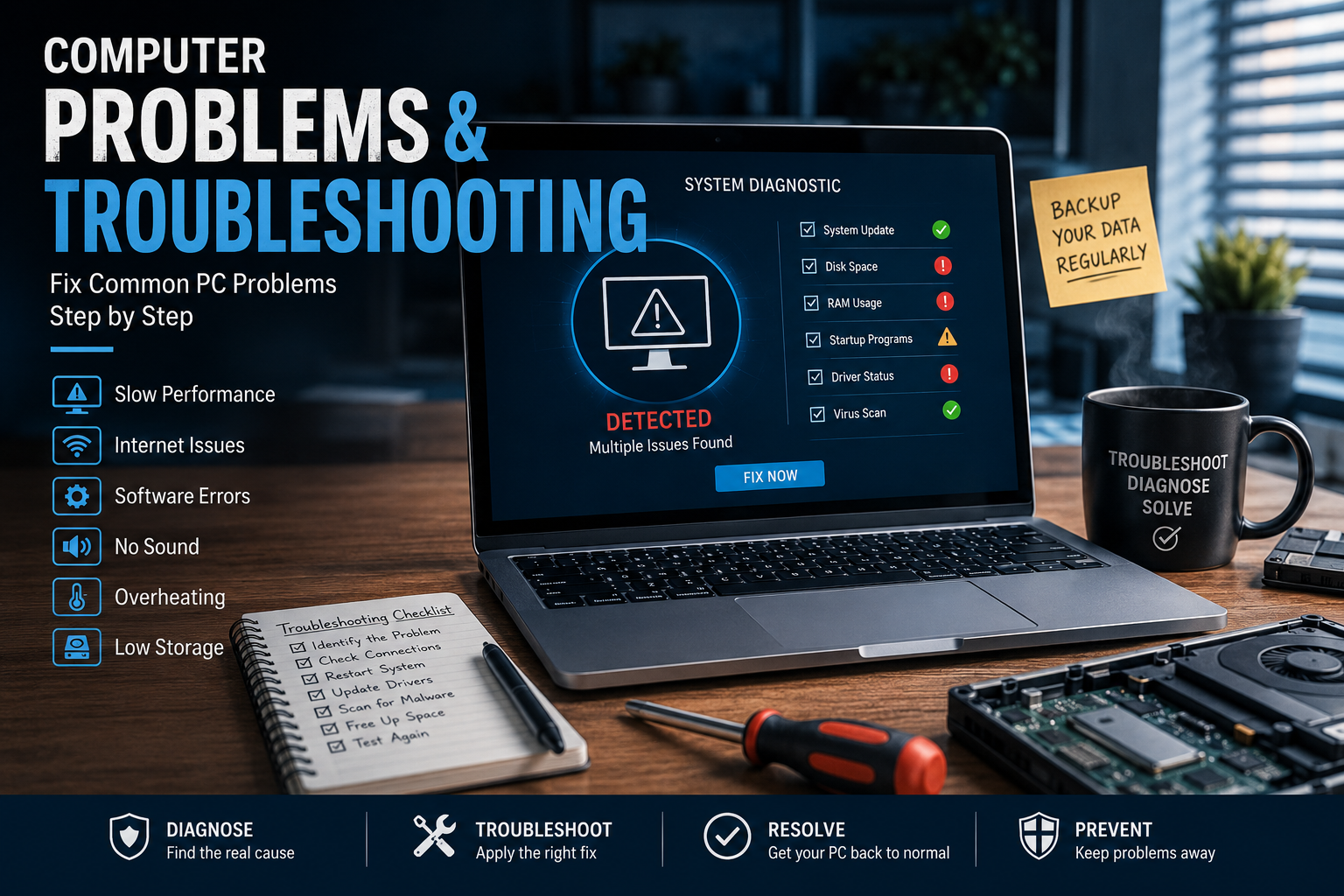
Computers rarely stop working for just one reason. Sometimes a program freezes because of a temporary software problem. Other times, a slow computer may be struggling with too many startup applications, low storage, overheating, outdated drivers, or failing hardware.
The good news is that many everyday computer problems can be diagnosed and fixed without taking the machine to a repair shop.
This guide explains common computer problems, what causes them, how to troubleshoot them safely, and when a problem requires professional help. The goal is not simply to give you a list of fixes, but to help you understand what your computer is telling you.
Common Computer Problems at a Glance
Some of the most frequently reported computer problems include:
- Computer running slowly
- PC freezing or becoming unresponsive
- Windows taking too long to start
- Programs crashing
- Computer restarting unexpectedly
- Blue screen errors
- Internet connection problems
- Wi-Fi disconnecting repeatedly
- No sound
- Keyboard or mouse not working
- USB devices not being detected
- Computer overheating
- Laptop battery draining quickly
- Low storage space
- Files disappearing or becoming inaccessible
- Windows updates failing
- Black screen or display problems
- High CPU, RAM, or disk usage
Before trying complicated solutions, start with the simplest possible explanation.
1. My Computer Is Running Slowly
A slow computer is one of the most common problems people experience.
A PC that used to feel fast can gradually become sluggish as applications, browser extensions, temporary files, updates, and background processes accumulate.
Possible causes
Your computer may be slow because of:
- Too many programs running simultaneously
- Excessive startup applications
- Low available RAM
- Nearly full storage
- Too many browser tabs
- Background updates or synchronization
- Malware or unwanted software
- Overheating
- An aging hard drive
- A failing storage device
What to do
Restart the computer first. It sounds basic, but restarting clears temporary processes and can resolve problems caused by software that has been running for a long time.
Then check which programs are consuming system resources.
On Windows, open Task Manager with Ctrl + Shift + Esc.
Look at:
- CPU — shows processor usage
- Memory — shows RAM usage
- Disk — shows storage-drive activity
- Network — shows network activity
If one application is consistently consuming an unusually large amount of resources, investigate that application rather than immediately blaming the entire computer.
A useful warning
Do not randomly end processes simply because they have unfamiliar names. Some processes are essential Windows components. If you do not recognize a process, search for its exact name or check whether it belongs to software you intentionally installed.
2. Windows Takes Too Long to Start
If your computer takes several minutes to become usable after pressing the power button, startup applications may be part of the problem.
Programs such as cloud storage tools, messaging applications, game launchers, update utilities, and other software may automatically start with Windows.
Try this
Open:
Task Manager → Startup apps
Review the applications listed there.
If you rarely need a particular program immediately after signing in, you can usually disable its automatic startup.
This does not uninstall the program. It simply prevents it from launching automatically.
Other possible causes
Slow startup can also be related to:
- An aging HDD
- Low free storage
- Damaged Windows files
- Too many background services
- Hardware problems
- Pending updates
If the computer has an older mechanical hard drive, replacing it with an SSD can produce a substantial improvement in startup and application loading.
3. Programs Keep Freezing or Crashing
When only one application repeatedly crashes, the problem may be with that application rather than Windows itself.
Try these steps
- Close and reopen the application.
- Restart the computer.
- Install the latest version of the application.
- Check whether Windows has pending updates.
- Disable recently installed extensions or add-ons.
- Repair or reinstall the application if necessary.
If the problem began immediately after installing another program, driver, or extension, consider whether that recent change is connected.
Look for a pattern
Ask yourself:
Does the application crash when I perform a particular action?
For example, if a video editor crashes only when exporting a large project, the problem may involve memory usage, graphics drivers, storage, or the application’s configuration.
Finding the pattern is often more useful than repeatedly restarting the application.
4. Computer Freezes Completely
A frozen computer can be caused by software, overheating, memory problems, storage issues, or failing hardware.
First, wait briefly. Some operations can temporarily make Windows appear frozen, particularly when a demanding program is processing a large amount of data.
If the system responds:
- Try
Ctrl + Shift + Escto open Task Manager. - Close the application that is not responding.
- Check CPU, memory, and disk usage.
If nothing responds at all, a forced shutdown may be necessary. Hold the power button until the computer turns off, then restart it.
However, do not make forced shutdowns a routine solution. Repeatedly interrupting the system can cause data loss or filesystem problems.
5. The Computer Keeps Restarting
Unexpected restarts deserve more attention than ordinary application crashes.
Possible causes include:
- Overheating
- Driver problems
- Windows system errors
- Faulty RAM
- Power-supply problems
- Hardware failure
- Recent software or driver changes
If Windows displays an error or blue screen before restarting, write down the error code.
That information can be extremely valuable when diagnosing the problem.
Check the basics
Make sure:
- The computer has adequate ventilation.
- Air vents are not blocked.
- Fans are functioning normally.
- Power cables are firmly connected.
- Recently installed hardware is properly seated.
If the machine repeatedly restarts under heavy workloads such as gaming or video rendering, overheating or power-related problems become more plausible.
6. Blue Screen of Death (BSOD)
A Windows blue screen usually indicates that the operating system encountered a serious error.
It does not automatically mean that the computer is permanently damaged.
Possible causes include:
- Faulty drivers
- Defective RAM
- Storage problems
- Incompatible hardware
- Corrupted system files
- Certain software conflicts
- Overheating
What information matters?
Look for the stop code displayed on the screen.
Examples include errors involving:
- Memory management
- Driver failures
- System service exceptions
- Critical processes
Write down the exact error rather than relying on a vague description such as “Windows crashed.”
If the crashes began after installing a driver or hardware component, that timing is an important clue.
7. Internet Is Not Working
Before changing complicated network settings, determine whether the problem affects one device or the entire network.
If every device is offline
The issue may involve:
- Router
- Modem
- Internet service provider
- Service outage
- Physical connection
If only your computer is offline
The problem may involve:
- Wi-Fi adapter
- Network driver
- Incorrect network settings
- DNS problems
- VPN software
- Firewall configuration
Simple troubleshooting sequence
Try this order:
- Check whether other devices can access the internet.
- Restart the router if appropriate.
- Restart the computer.
- Disconnect and reconnect to Wi-Fi.
- Temporarily test without a VPN.
- Check the network adapter.
- Run Windows’ built-in network troubleshooting tools.
This approach helps determine whether you are dealing with a local computer problem or an internet-service problem.
8. Wi-Fi Keeps Disconnecting
Repeated Wi-Fi disconnections can be frustrating, especially during meetings, gaming, or streaming.
Possible causes include:
- Weak wireless signal
- Router congestion
- Driver problems
- Interference
- Power-management settings
- Router firmware issues
- Network adapter problems
Try comparing devices
If your phone, tablet, and another computer remain connected while one laptop repeatedly disconnects, the router is less likely to be the main problem.
Move the computer closer to the router and test again.
If the connection becomes stable, signal strength or interference may be involved.
For laptops, also check whether Windows is aggressively powering down the Wi-Fi adapter to save energy.
9. No Sound From the Computer
If you suddenly lose audio, check the obvious things first.
Make sure:
- The volume is not muted.
- The correct output device is selected.
- Headphones or speakers are connected properly.
- The application itself is not muted.
- Bluetooth has not redirected the audio to another device.
Windows can have several available audio outputs, including:
- Laptop speakers
- HDMI monitors
- Bluetooth headphones
- USB headsets
- External speakers
A computer may appear to have “no sound” when the audio is simply being sent somewhere else.
10. Keyboard or Mouse Stops Working
For wired devices:
- Unplug the device.
- Try another USB port.
- Restart the computer.
- Test the device on another computer if possible.
For wireless devices:
- Check the battery.
- Reconnect the receiver.
- Re-pair the Bluetooth device.
- Move the device closer to the computer.
If multiple USB devices suddenly stop working at the same time, the issue may be related to Windows, USB drivers, power management, or the USB controller rather than the individual devices.
11. USB Device Is Not Recognized
When Windows says a USB device is not recognized, don’t immediately assume the device is broken.
Try:
- A different USB port.
- The device on another computer.
- Disconnecting unnecessary USB devices.
- Restarting Windows.
- Checking Device Manager for hardware errors.
If a device works on another computer but not yours, the computer’s USB configuration or driver environment becomes a stronger suspect.
12. Computer Is Overheating
Heat is a serious issue because excessive temperatures can cause:
- Performance throttling
- Random shutdowns
- Crashes
- Fan noise
- Reduced component lifespan
Laptops are especially vulnerable when used on beds, blankets, sofas, or other surfaces that block ventilation.
Improve cooling
Keep the computer on a hard, flat surface.
Make sure air vents are clear and that accumulated dust is removed safely.
If the fans constantly run at high speed even when the computer is doing very little, investigate which process is consuming CPU resources.
For persistent overheating, professional cleaning and hardware inspection may be appropriate.
13. Laptop Battery Drains Too Quickly
Battery life naturally decreases as a battery ages.
However, sudden battery drain can also be caused by:
- High screen brightness
- Background applications
- High CPU usage
- Gaming
- Video editing
- Poor battery health
- Wireless peripherals
- Background synchronization
Find the cause
Check which applications are consuming significant power.
Lowering brightness, reducing unnecessary background activity, and using an appropriate power mode can help.
If the battery has become physically swollen, stop using the device and seek professional service. A swollen lithium-ion battery can be dangerous.
14. Computer Says Storage Is Full
A nearly full drive can cause more than an annoying warning.
Windows and applications need working space for temporary files, updates, caches, and other operations.
Find large files
Check your storage settings and identify what is consuming space.
Common space users include:
- Videos
- Downloads
- Games
- Application data
- Temporary files
- Old installers
- Recycle Bin contents
- Previous Windows installation files
Do not delete folders simply because their names look unfamiliar.
If you are unsure what a system folder does, leave it alone until you verify its purpose.
15. Windows Update Will Not Install
Failed updates can happen because of:
- Insufficient storage
- Damaged update files
- Internet problems
- Incompatible drivers
- Windows system-file corruption
- Another update waiting to complete
Start with a restart and ensure that the computer has enough free storage.
If a specific update repeatedly fails, record its error code. Searching by the exact code is usually more effective than searching for “Windows Update not working.”
16. Black Screen or No Display
A black screen can originate from the display, cable, graphics system, Windows, or the computer itself.
Check:
- Monitor power
- Display cable
- Input source
- Brightness
- External monitor connection
- Keyboard response
- Whether the computer’s fans and indicator lights are active
If using a desktop PC with a dedicated graphics card, make sure the monitor cable is connected to the correct video output.
If the computer powers on but the display remains completely blank, hardware diagnosis may be necessary.
17. Files Are Missing
If a file disappears, do not immediately assume it has been permanently deleted.
Check:
- Recycle Bin
- Recent files
- Downloads
- Desktop
- Cloud storage
- External drives
- Search by filename
- Different user accounts
If the file is important and you suspect accidental deletion, avoid writing large amounts of new data to the affected drive. New data can potentially overwrite recoverable information.
For valuable or irreplaceable files, professional data-recovery assistance may be safer than experimenting with random recovery software.
18. Computer Problems After Installing New Software
If something goes wrong immediately after installing a program, driver, browser extension, or utility, that timing matters.
Think backward:
What changed immediately before the problem appeared?
This is one of the most useful troubleshooting habits.
You may be able to resolve the problem by:
- Uninstalling the recently installed software
- Disabling an extension
- Updating the software
- Reverting a problematic driver
- Using System Restore when appropriate
Avoid downloading random “PC repair” programs from unfamiliar websites. Some applications marketed as computer optimizers can create additional problems.
A Better Way to Troubleshoot Any Computer Problem
Instead of randomly trying solutions, use a structured process.
Step 1: Describe the problem precisely
Instead of:
“My computer is broken.”
Write:
“Windows starts normally, but the computer freezes when I open Chrome.”
The second description immediately narrows the investigation.
Step 2: Determine when the problem occurs
Ask:
- Does it happen during startup?
- Only after several hours?
- Only while gaming?
- Only when connected to Wi-Fi?
- Only with one application?
- Only when the computer is under heavy load?
Patterns reveal causes.
Step 3: Identify recent changes
Think about what changed before the problem began.
Examples:
- New software
- Windows update
- Driver update
- New hardware
- New browser extension
- Changed network settings
Step 4: Change one thing at a time
If you change ten settings simultaneously, you may never know which change fixed the problem.
Make one controlled change, test the result, and continue from there.
Step 5: Record error messages
Take a photograph or screenshot of important error messages.
An exact error code is often much more useful than a description from memory.
When You Should Stop Troubleshooting Yourself
Some problems are better handled by a qualified technician.
Seek professional assistance when:
- The computer smells like burning electronics.
- A battery is swollen.
- Liquid has entered the computer.
- The system repeatedly shuts down.
- A hard drive is making unusual mechanical noises.
- Important files are at risk.
- The computer will not power on.
- Hardware replacement is required.
- You suspect electrical or motherboard damage.
Do not open or repair hardware while it is connected to power, and do not experiment with damaged lithium-ion batteries.
How to Prevent Computer Problems
Good maintenance can prevent many issues before they become serious.
Keep software updated
Operating-system and application updates can provide security fixes, compatibility improvements, and bug fixes.
Maintain free storage
Avoid running your main system drive permanently at or near capacity.
Keep ventilation clear
Dust and blocked airflow can increase temperatures.
Back up important files
A computer should never be the only place where irreplaceable files exist.
A good backup strategy can protect photos, documents, projects, and other important information from hardware failure, accidental deletion, ransomware, or other disasters.
Be careful about what you install
Download software from reputable sources whenever possible.
Avoid suspicious “driver updater,” “PC booster,” and “registry cleaner” applications that make unrealistic promises.
Quick Troubleshooting Checklist
When something goes wrong, use this sequence:
- Identify exactly what is not working.
- Restart the computer.
- Check cables, power, and connections.
- Determine whether the problem affects one application or the entire system.
- Check CPU, RAM, disk, and network usage.
- Look for recent software or hardware changes.
- Record any error codes.
- Install legitimate pending updates.
- Test the affected component on another device when possible.
- Back up important files before performing risky repairs.
- Seek professional help when hardware or valuable data is involved.
Final Thoughts
Computer troubleshooting is less about memorizing hundreds of fixes and more about finding the cause logically.
Start with simple possibilities. Look for patterns. Check what changed. Read error messages carefully. Test one variable at a time, and avoid installing questionable “repair” tools just because they promise to make your computer faster.
Most importantly, protect your data.
A slow computer can be frustrating. A lost collection of photographs, documents, business files, or personal projects can be far more serious. Regular backups and sensible maintenance are among the most valuable forms of computer troubleshooting because they reduce the damage when something eventually goes wrong.
Frequently Asked Questions
Why is my computer suddenly so slow?
Common causes include excessive background applications, insufficient storage, high memory usage, overheating, malware, or an aging storage drive. Check Task Manager to identify which resources are being heavily used.
Should I restart my computer when something goes wrong?
Yes. Restarting can clear temporary software problems and stuck processes. However, repeated crashes or restarts indicate that you should investigate the underlying cause.
How do I know whether my computer problem is hardware or software?
Look for patterns. If one application crashes, software is more likely. If the entire system crashes, fails to boot, overheats, or shows physical symptoms, hardware becomes more likely.
Can a full hard drive make a computer slow?
Yes. A system drive with very little free space can interfere with temporary files, updates, caching, and normal operating-system activity.
When should I take my computer to a technician?
If there is physical damage, overheating, suspected hardware failure, electrical damage, liquid exposure, repeated crashes, or important data that you cannot afford to lose, professional assistance is the safer option.
: Learn how to troubleshoot common computer problems, including slow PCs, crashes, Wi-Fi issues, overheating, storage errors, and Windows problems.